Locating UI Elements (WebElements)

Locating WebElements  is the job to find and match the elements of your page that it needs to interact with. It contains “Find Element” and “Find Elements” method. The first returns a WebElement object otherwise it throws an exception. The latter returns a list of WebElements, it can return an empty list if no DOM elements match the query.

Browser Tools For Element Inspection:

  • Firefox – ‘Firebug’ add-on (right click → ‘Inspect Element’ / F12)
  • Chrome – Built-in page analyzing feature (right click → ‘Inspect Element’ / F12)
  • IE – Developers tool (‘Tools’ → ‘Developers Tools’ / F12)

Below are common locators strategies used in Selenium:

  1. By ID
  2. By Class Name
  3. By Tag Name
  4. By Name
  5. By Link Text/Partial Link Text
  6. By Css Selector
  7. By Xpath

By ID

By ID

WebElement element = driver.findElement(By.id("Selenium"));

By Class Name

By Class

WebElement element = driver.findElement(By.className("WebDriver"));

By Tag Name

By tagName

WebElement element =driver.findElement(By.tagName("textarea"));

By Link Text/ Partial Link Text

linkText

WebElement element = driver.findElement(By.linkText("Test Execution"));//By linktext
WebElement element = driver.findElement(By.partialLinkText("Execution"));//By Partial linktext

By Css Selector

CSS – Cascading Style Sheets – language used for describing the presentation semantics of a document written in a markup language such as HTML or XML.

In CSS, selectors are patterns used to select the element(s) you want to style.

In selenium, we can use CSS selector to indicate the element that need to be interacted.

Below are some basic syntaxs of CSS Selector:

cssSelector

Example:

ID and tag

WebElement element;
element = driver.findElement(By.cssSelector("#comment-issue")); //using id
element = driver.findElement(By.cssSelector("ul#comment-issue")); "));//using id and tag
element = driver.findElement(By.cssSelector("ul#comment-issue[title~='issue']")); //using id,tag and partial of attribute

class_attribute

WebElement element;
element = driver.findElement(By.cssSelector(".issue-link") //using class
element = driver.findElement(By.cssSelector(".issue-link[title='WebDriver']") //using class and attribute
element = driver.findElement(By.cssSelector("a.issue-link[title='WebDriver']") //using tag, class and attribute
element = driver.findElement(By.cssSelector(".stsumary a.issue-link") //using many class levels – 'issue-link' is a child of 'stsumary' class

Read more about Css Selector here

By Xpath

  • Xpath is a query language for selecting nodes from an XML document.
  • Xpath is based on a tree representation of the XML document and provides the ability to navigate around the tree. The most useful path expressions are listed below:

Xpath expression

In the table below we have listed some path expressions and the result of the expressions:

Xpath example

Read more about Xpath here

DOWNLOAD AND INSTALL SELENIUM WEBDRIVER WITH ECLIPSE AND JAVA

Step 1 : Download and install Java in your system

Click here to download Java and install it in your system as per given installation guide over there.

Step 2 : Download and install Eclipse

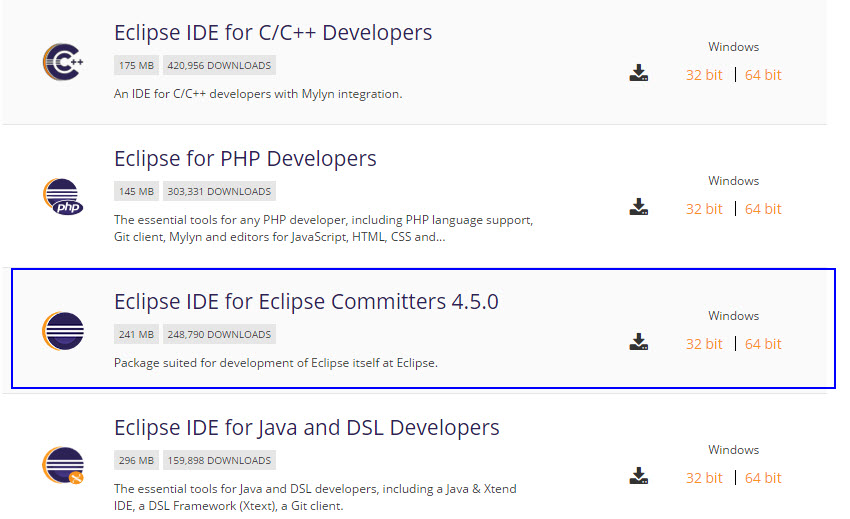
Download Eclipse for Java Developers and extract save it in any drive. It is totally free. You can run ‘eclipse.exe’ directly so you do not need to install Eclipse in your system.

Install Eclipse

Step 3 : Download WebDriver Jar Files.

Selenium webdriver supports many languages and each language has its own client driver. Here we are configuring selenium 2 with java so we need ‘webdriver Java client driver’. Click here to go on WebDriver Java client driver download page for webdriver download file. On that page click on ‘Download’ link of java client driver as shown in bellow image.

download java

(language-specific client driver’s version is changing time to time so it may be different version when you will visit download page. )

Downloaded ‘webDriver Java client driver’ will be in zip format. Extract and save it in your system (ex: D:\selenium-2.46.0) . There will be ‘libs’ folder, 2 jar files and change log in unzipped folder as shown in bellow figure. We will use all these files for configuring webdriver in eclipse.

extract

Step 4 : Start Eclipse and configure it with selenium 2 (webdriver)

  • Select WorkSpace on eclipse start up

Double click on ‘eclipse.exe’ to start eclipse. First time when you start eclipse, it will ask you to select your workspace where your work will be stored as shown in bellow image. Create new folder in D: drive with name ‘Webdriverwork’ and select it as your workspace. You can change it later on from ‘Switch Workspace’ under ‘file’ menu of eclipse.

workspace

After selecting workspace folder, Eclipse will be open.

  • Create new project

Create new java project from File > New > Project > Java Project and give your project name ‘testproject’ as shown in bellow given figures. Click on finish button.

new project

new project2

Now your new created project ‘TestingProject’ will be displayed in eclipse project explorer as bellow.

9-7-2015 11-00-24 AM

  • Create new package

Right click on project name ‘TestingProject’ and select New > Package. Give your package name = ‘myTestPack’ and click on finish button. It will add new package with name ‘myTestPack’ under project name ‘TestingProject’.

new package

  • Create New Class

Right click on package ‘myTestPack’ and select New > Class and set class name = ‘myTestClass’ and click on Finish button. It will add new class ‘myTestClass’ under package ‘myTestPack’

new class

Now your Eclipse window will looks like bellow.

testwindows

  • Add external jar file to java build path

Now you need to add selenium webdriver’s jar files in to java build path.

Right click on project ‘TestingProject’ > Select Properties > Select Java build path > Navigate to Libraries tab

Click on add external JARs button > select both .jar files from D:\selenium-2.46.0

Click on add external JARs button > select all .jar files from D:\selenium-2.46.0\libs

Now your TestingProject’s properties dialogue will looks like bellow.

Project Proties

That’s all about configuration of WebDriver with eclipse. Now you are ready to write your test in eclipse and run it in WebDriver.